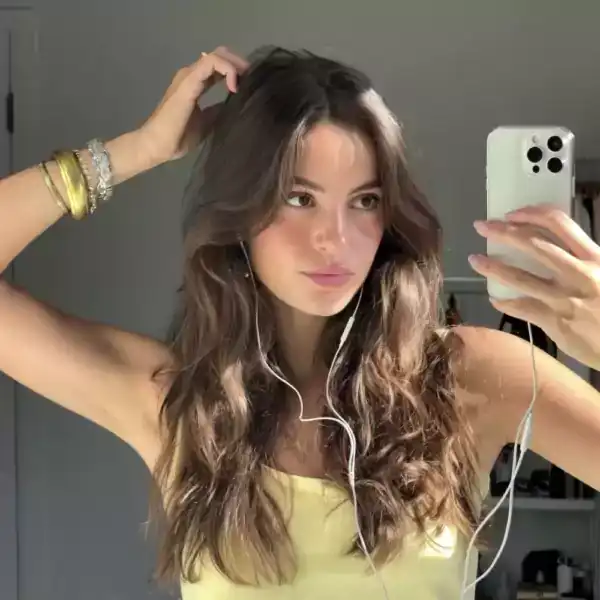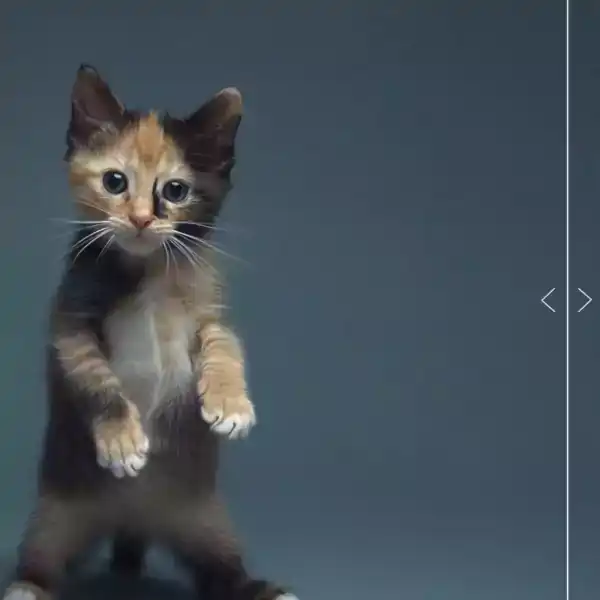
Remove background from image
The subject, nothing else
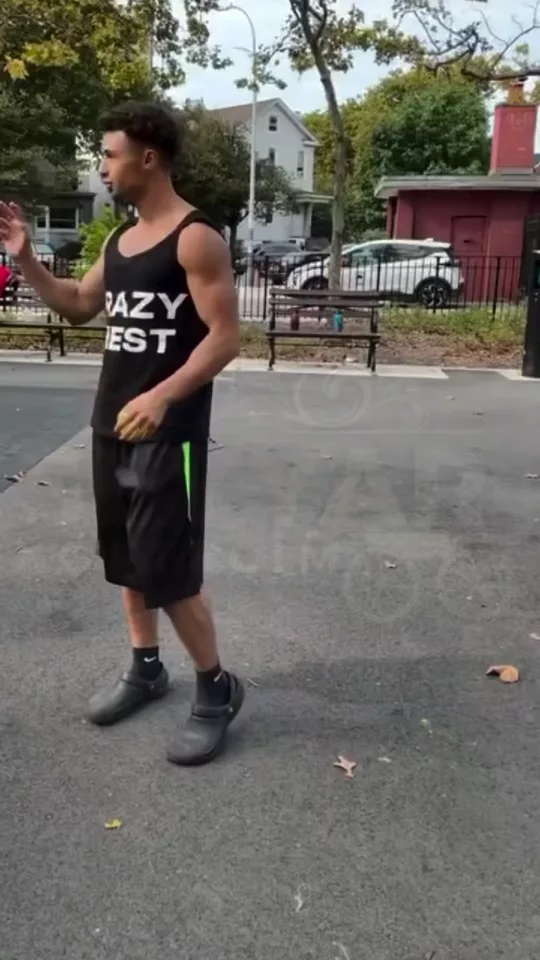
Background Remover in 3 steps
01
Upload a still
Background Remover starts from the still you add. Remove the background from a photo. Keep the hair or the product edge, then fill with transparent, white, or a brand color.
02
Set edge
Choose edge, fill, shadow. The subject, nothing else.
03
Generate, then cut
Take the result into the video editor for a hook, captions, and a vertical export for TikTok, Reels, or Shorts.
Built for The subject, nothing else
A background remover for a still. Remove the background from a photo, erase a white background, and keep a transparent fill. Hair, a hard product edge, or a soft edge.
Edge
Hair, Hard product, Soft. Pick one and Background Remover keeps the rest of the frame.
Fill
Transparent, White, Brand color. Pick one and Background Remover keeps the rest of the frame.
Shadow
Keep, Drop, None. Pick one and Background Remover keeps the rest of the frame.
Pick your plan
The editor stays free. New accounts get 10 credits, and you pay only when you generate.
See pricingStill have questions?
What is Background Remover?
Remove the background from a photo. Keep the hair or the product edge, then fill with transparent, white, or a brand color. The subject, nothing else.
How do I remove the background from an image?
Upload the photo, choose the edge and the fill, and generate a cutout. Transparent, white, and a brand color are the fills. A green screen is not required. The editor stays free. New accounts get 10 credits, and a generation spends credits. Video backgrounds use Video Background Remover.
Does it change the original?
The still stays the frame. Background Remover builds the new shot from it instead of replacing what you uploaded.
What can I use the result for?
TikTok, Reels, and Shorts. Open the video editor under the studio when the shot needs a hook, captions, or a vertical export.
Do I need to write a prompt?
The controls do most of the asking: edge, fill, shadow. The line under them is optional.
Explore more apps
More in Extras. More creative tools to explore.