
Image extender
The frame was never the edge
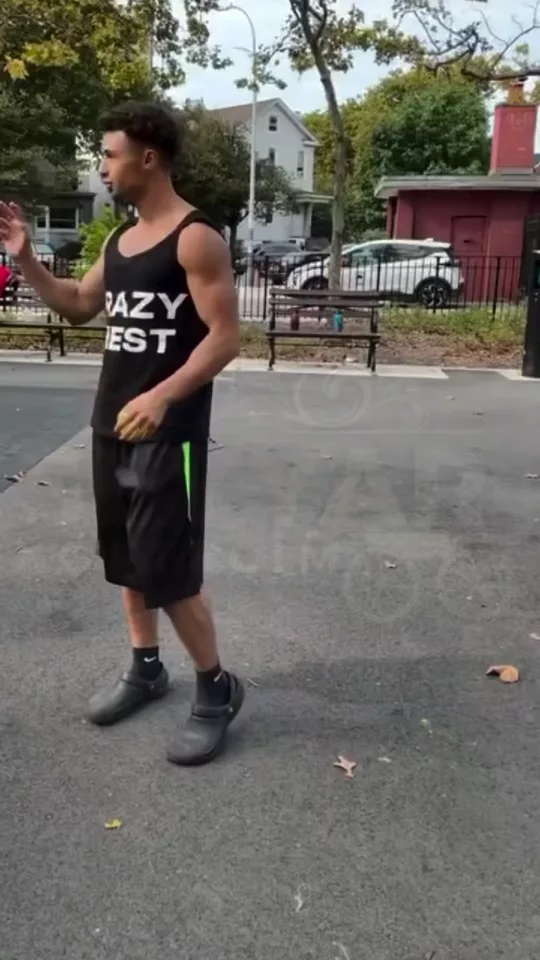
Expand image in 3 steps
01
Upload a still
Expand image starts from the still you add. An image extender that continues the photo past the crop: left, right, above, below, or all sides.
02
Set direction
Choose direction, world, seam. The frame was never the edge.
03
Generate, then cut
Take the result into the video editor for a hook, captions, and a vertical export for TikTok, Reels, or Shorts.
Built for The frame was never the edge
An image extender, also called an image expander or an uncrop. Direction is one side or all sides, and the new world can continue the room, open to sky, or go to the street.
Direction
Left, Right, Above, Below. Pick one and Expand image keeps the rest of the frame.
World
Continue the room, Open sky, Street, Dark. Pick one and Expand image keeps the rest of the frame.
Seam
Invisible, Painterly. Pick one and Expand image keeps the rest of the frame.
Pick your plan
The editor stays free. New accounts get 10 credits, and you pay only when you generate.
See pricingStill have questions?
What is Expand image?
An image extender that continues the photo past the crop: left, right, above, below, or all sides. The frame was never the edge.
How do I extend an image past the crop?
Upload the still, pick the direction and what should appear outside the frame, and generate. The editor stays free. New accounts get 10 credits, and a generation spends credits.
Does it change the original?
The still stays the frame. Expand image builds the new shot from it instead of replacing what you uploaded.
What can I use the result for?
TikTok, Reels, and Shorts. Open the video editor under the studio when the shot needs a hook, captions, or a vertical export.
Do I need to write a prompt?
The controls do most of the asking: direction, world, seam. The line under them is optional.
Explore more apps
More in Professional. Generate shots, angles, and seamless transitions.
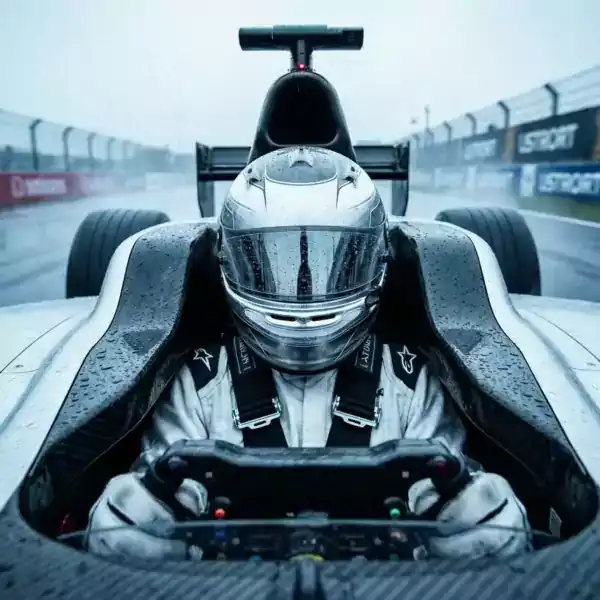
Angles 2.0
Generate any angle view for any image in seconds
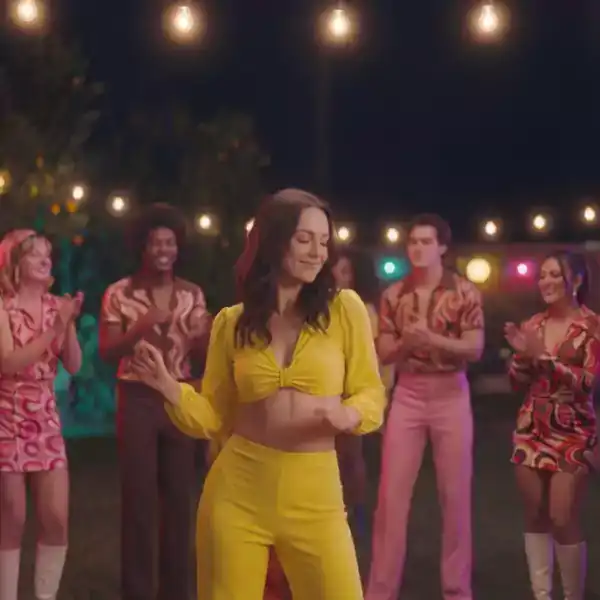
What's Next?
Explore 8 narrative possibilities from 1 scene
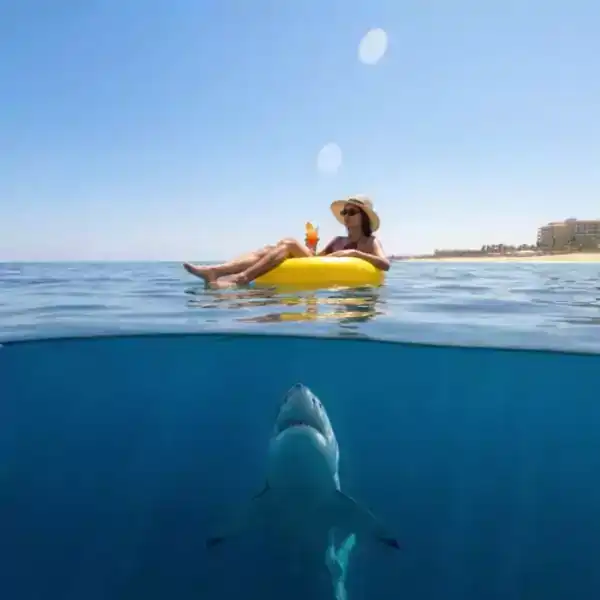
Shots
9 unique shots from one image
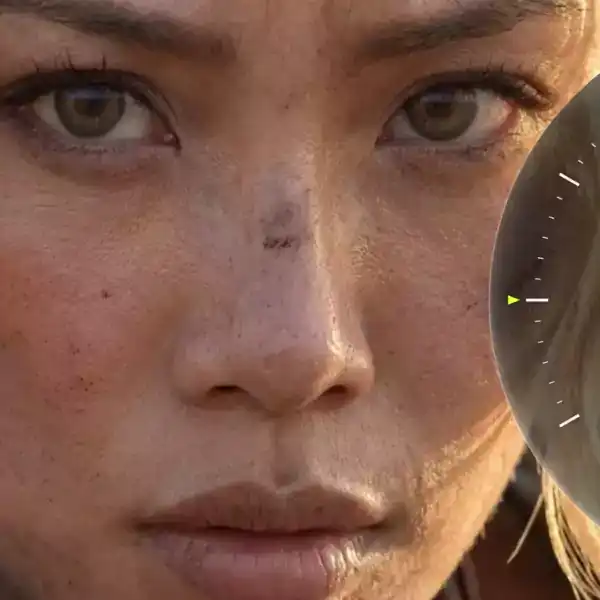
Zooms
A zoom effect from one still: establishing, waist, face, eyes, or a detail, at a creep, a steady push, or a snap.
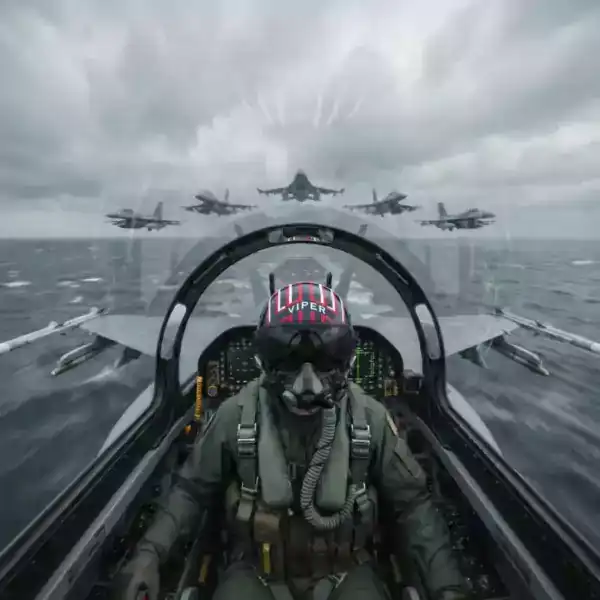
Behind the Scenes
Turn photos into behind-the-scenes videos
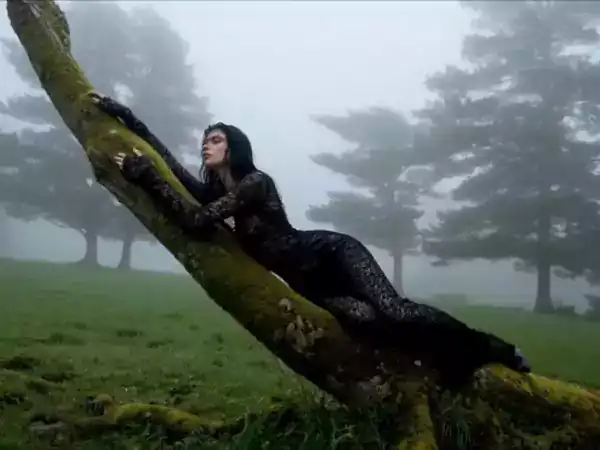
Transitions
Video transitions between two shots: match cut, whip, light leak, morph, or a pass-through.
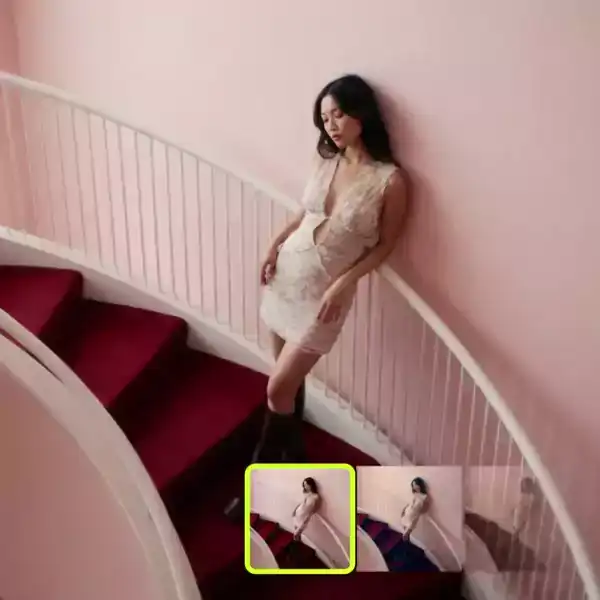
Color grading
Color grading for a still or a clip. Neutral, teal and orange, bleach, night blue, or a warm print, with soft, filmic, or hard contrast.

Virality Predictor
Predict how viral your video hook is before you post