Viral Hooks
Trending short videosTutorial for phone cinematic mode
G

@gosha_kamaev

Instagram · Vlog
@gosha_kamaev Управление фокусом в режиме «Киноэффект» на Iphone 🎥 Сохраняй! 👇 ✅ Открой приложение камеры и выберите режим «Киноэффект». ✅ Используй трехкратный оптический зум 3х. ✅ После съёмки фокус можно отредактировать, для этого зайди в галерею и выбери видео, которое требуется изменить. ✅ Нажми «править», под видео ты увидишь временную шкалу. А под временной шкалой желтыми точками обозначены моменты на видео, когда точка фокусировки меняется от одного объекта в другому. ✅ В начале видео зафиксируй фокус длительным нажатием на фоне. ✅ Затем выбери на временной шкале момент, где хочешь переместить фокус на другой объект. И так же зафиксируй фокус на нужном объекте. ✅ Сохрани изменения. Focusing control in Cinematic mode on iPhone 🔥 Saveit! ✅ Open the Camera app and select Cinematic mode. ✅ Use the triple optical zoom 3x. ✅ After shooting, you can edit the focus. To do this, go to the gallery and choose the video you want to modify. ✅ Tap "Edit," under the video you'll see a timeline. Under the timeline, yellow dots mark the moments in the video when the focus shifts from one object to another. ✅ At the beginning of the video, fix the focus by pressing and holding on to the background. ✅ Then select a moment on the timeline where you want to shift the focus to another object. Likewise, fix the focus on the desired object. ✅Save the changes.
View original on Instagram

The edit1 shot · 7 text
Shots Text

Performance

Views
965.6K
Likes
47.6K
Comments
110
Engagement
5%

Video #2420 · Vlog

Tutorial for phone cinematic modefrom @gosha_kamaev

[01]

Overview

The creator provides a step-by-step tutorial on how to use the iPhone's 'Cinematic Mode'. He first demonstrates filming a model walking down a city street, then uses screen recordings to show the process of selecting the mode, using 3x zoom, opening the video in the gallery, and editing the focus points on the timeline to shift focus from the background to the subject.

[02]

Simple outline

  1. 1Present a desired outcome
  2. 2Show the initial setup
  3. 3Detail the manipulation process
  4. 4Reveal the transformed result

[03]

Related videos

[04]

Classification

Format
Concepts
Tutorial / How To
Elements
Text OverlayScreen RecordingTrending Audio

[05]

Hook analysis

What stops the scroll in the first 3 seconds

Title hook

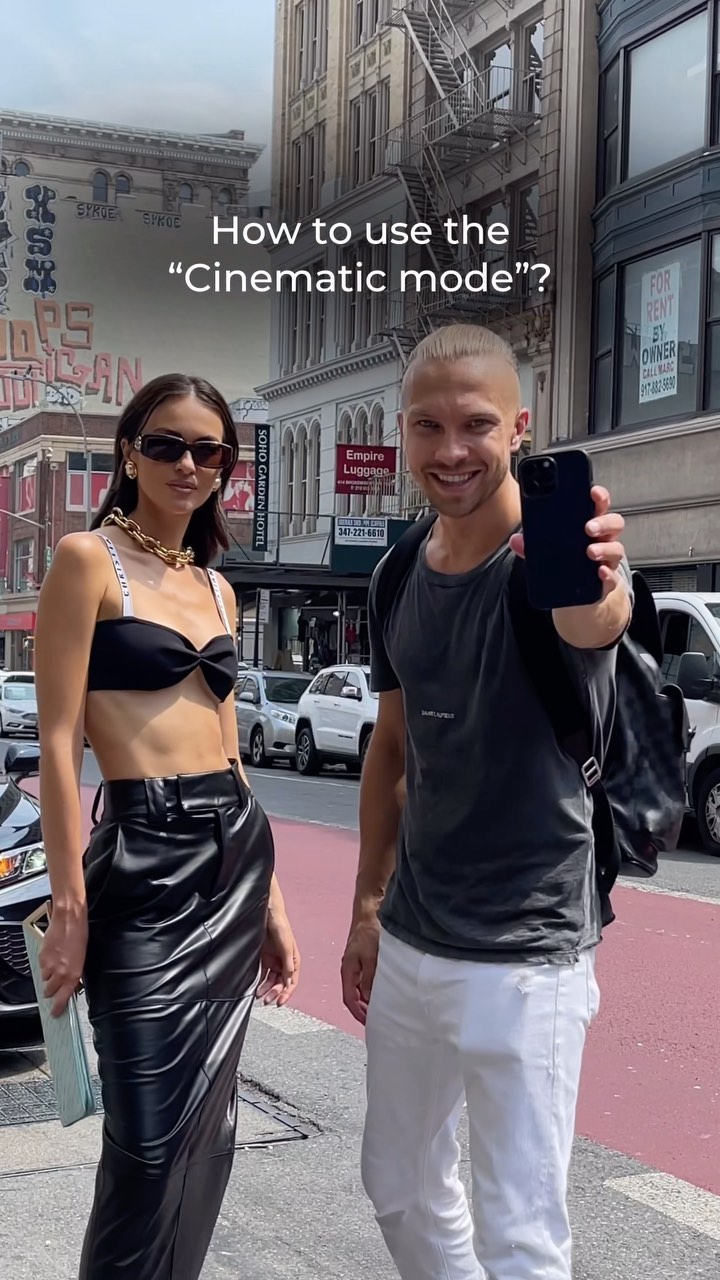
How to use the “Cinematic mode”?

Visual hook

A stylishly dressed man and woman stand on a busy city street. The man holds up a smartphone towards the camera, immediately signaling a tech or photography-related topic in an aspirational, urban setting.

[07]

Hook and payoff

The promise the opener makes, and how the video pays it back

Hook

Pose a direct 'How to achieve [desirable outcome]?' question over a visually appealing scene that represents the context or goal.

Payoff

The Cinematic Reveal: Presents the final, polished video without any UI or text overlays, showcasing the successful effect as a satisfying conclusion.

[08]

Narrative framework

The structural pattern this video runs on

Framework

The Skill-Reveal Blueprint

A step-by-step tutorial that breaks down a complex-looking technique into simple, actionable steps, culminating in a satisfying reveal of the final, polished result.

  1. 1

    The Foundation

    Instructs the user on the specific mode and settings required to begin the process, establishing the correct initial conditions.

  2. 2

    The Raw Capture

    Demonstrates the action of recording or creating the base material that will be manipulated later.

  3. 3

    The Post-Production Gateway

    Transitions the viewer from the capture phase to the editing environment where the transformation will occur.

  4. 4

    The Background Anchor

    Shows the first critical editing step: setting and locking the initial state or focus point on the background element.

  5. 5

    The Temporal Shift

    Demonstrates how to navigate the timeline to the precise moment where the key change needs to happen.

  6. 6

    The Subject Lock

    Illustrates the core manipulation: shifting and locking the focus or primary effect onto the main subject.

Themes

  • Education
  • Technology
  • Content Creation
  • Fashion

Techniques

  • Step-by-step instruction
  • Focus pulling
  • Mobile videography

Trends

  • Tech tutorial
  • How-to content

Post caption

Управление фокусом в режиме «Киноэффект» на Iphone 🎥 Сохраняй! 👇 ✅ Открой приложение камеры и выберите режим «Киноэффект». ✅ Используй трехкратный оптический зум 3х. ✅ После съёмки фокус можно отредактировать, для этого зайди в галерею и выбери видео, которое требуется изменить. ✅ Нажми «править», под видео ты увидишь временную шкалу. А под временной шкалой желтыми точками обозначены моменты на видео, когда точка фокусировки меняется от одного объекта в другому. ✅ В начале видео зафиксируй фокус длительным нажатием на фоне. ✅ Затем выбери на временной шкале момент, где хочешь переместить фокус на другой объект. И так же зафиксируй фокус на нужном объекте. ✅ Сохрани изменения. Focusing control in Cinematic mode on iPhone 🔥 Saveit! ✅ Open the Camera app and select Cinematic mode. ✅ Use the triple optical zoom 3x. ✅ After shooting, you can edit the focus. To do this, go to the gallery and choose the video you want to modify. ✅ Tap "Edit," under the video you'll see a timeline. Under the timeline, yellow dots mark the moments in the video when the focus shifts from one object to another. ✅ At the beginning of the video, fix the focus by pressing and holding on to the background. ✅ Then select a moment on the timeline where you want to shift the focus to another object. Likewise, fix the focus on the desired object. ✅Save the changes.
Text overlays

  • title · beginning

    How to use the “Cinematic mode”?

  • informational · beginning

    Choose the cinematic mode

  • informational · beginning

    Shoot a video using the 3x zoom

  • informational · middle

    Open the video in the gallery and click "Edit"

  • informational · middle

    Click on the background and lock the focus at the beginning of the video

  • informational · middle

    Move the time slider to the point where you need to focus on the person

  • informational · middle

    Fix the focus with a long tap

Transcript

I'm