Viral Hooks
Trending short videosHow to animate text tutorial
H

@happywithmeg

Instagram · Speaker address

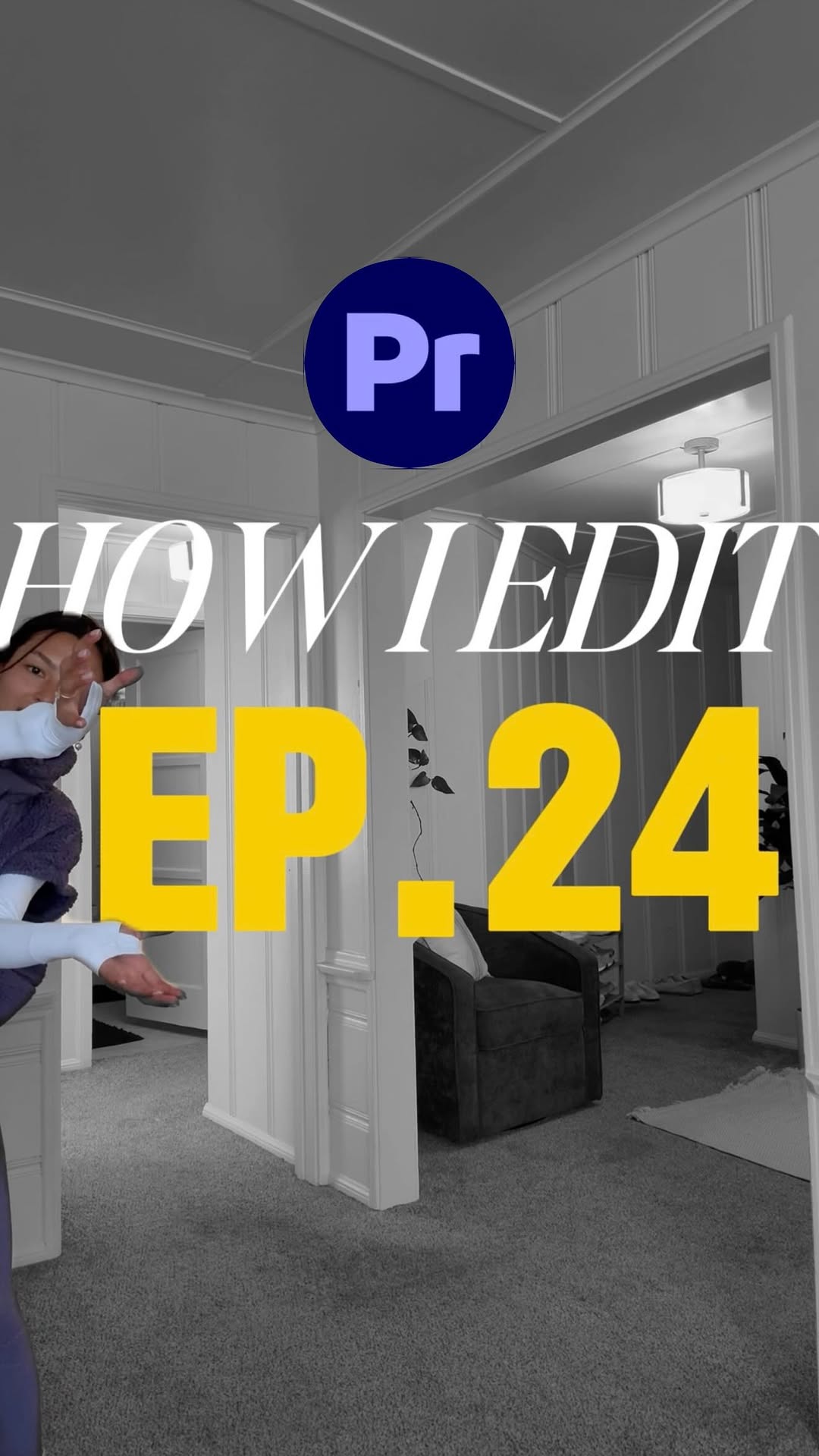
@happywithmeg EP 24: HOW I EDIT - Adding movement to your text🌟 I always get questions on how I edit the text in my videos, so here you go! & it’s all thanks to Keyframes, which are now available in Adobe Premiere on iPhone :) @AdobeVideo #AdobePartner

View original on Instagram

The edit1 shot · 20 text
Shots Text0:49

Performance

Views
1M
Likes
26.9K
Comments
65
Engagement
2.6%
Length · 11 Feb 2026
0:49

Video #19327 · Speaker address

How to animate text tutorialfrom @happywithmeg

[01]

Overview

The creator introduces the 24th episode of her 'How I Edit' series, focusing on adding movement to text. She explains the value of animated text for viewer engagement, then provides a step-by-step screen-recorded tutorial on how to use the keyframe feature in Adobe Premiere on an iPhone to make text move. She concludes by showing other creative possibilities and recommending the app.

[02]

Simple outline

  1. 1Demonstrate desirable outcome
  2. 2Explain value and accessibility
  3. 3Provide step-by-step tutorial
  4. 4Showcase creative variations

[03]

Related videos

[04]

Classification

Concepts
Tutorial / How To
Elements
Text OverlayScreen RecordingAnnotation OverlaySeries Title Card
Topics

[05]

Hook analysis

What stops the scroll in the first 3 seconds

Title hook · 25%

HOW I EDIT EP. 24

Verbal hook · 15%

Episode 24 of how I edit.

Visual hook · 60%

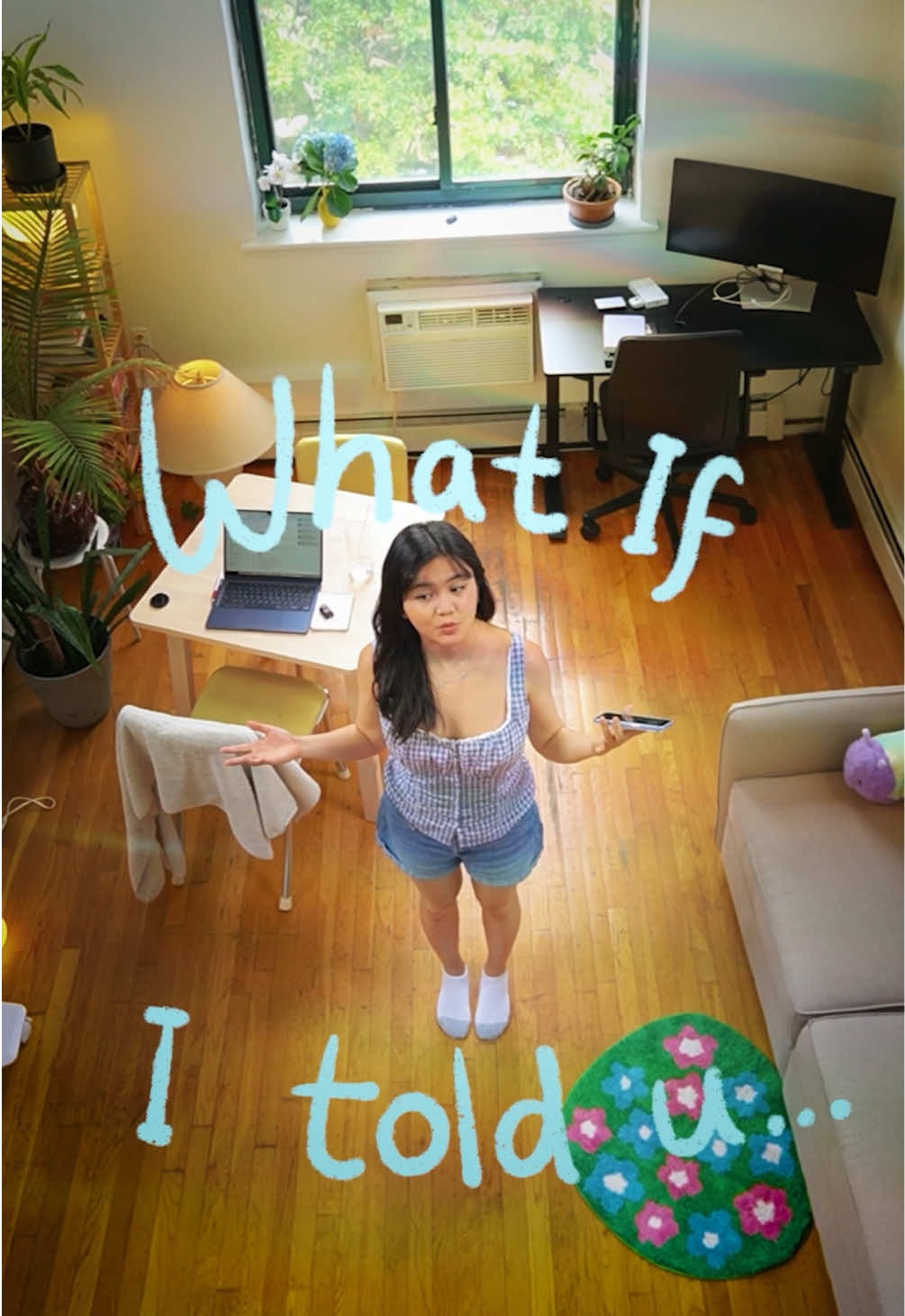
The video opens with the creator dancing energetically in a black and white shot, which quickly transitions to full color, creating a strong visual pattern interrupt.

[06]

Hook template

Steal this for your own video

Start in [muted visual style], then cut to [full sensory version] — the contrast is your hook.

  • — Start in black and white, then cut to full color — the contrast is your hook.
  • — Start in slow motion silence, then cut to the full-speed sound-on version — the contrast is your hook.
  • — Start in a raw unedited clip, then cut to the polished final edit — the contrast is your hook.

[07]

Hook and payoff

The promise the opener makes, and how the video pays it back

Hook

A high-energy visual demonstration of the final, polished result, immediately establishing the video's goal and the creator's expertise.

Payoff

A direct endorsement of the featured tool, positioning it as the ideal solution, followed by a clear, low-friction Call to Action.

[08]

Narrative framework

The structural pattern this video runs on

Framework

The Skill Transfer Blueprint

A 'show, explain, empower' model that demonstrates a desirable skill, breaks it down into simple steps using a specific tool, and then expands on its creative potential to solidify the tool's value.

  1. 1

    The Value Proposition

    The creator explicitly states the benefit of learning the skill, framing it as a way to achieve a desirable outcome (e.g., more engagement, better results).

  2. 2

    The Accessibility Promise

    The creator lowers the perceived difficulty and cost by stating the process is easy and revealing the accessible tool that will be used.

  3. 3

    The Procedural Walkthrough

    A screen-recorded or first-person view that breaks the complex skill down into a series of simple, discrete, and replicable steps. Each action is clearly narrated.

  4. 4

    The Proof of Concept

    The creator shows the immediate result of following the steps, providing a moment of satisfaction and confirming the method's effectiveness.

  5. 5

    The Creative Expansion

    The creator moves beyond the single tutorial example to showcase a rapid montage of other ways the skill can be applied, broadening the viewer's understanding of its potential.

Themes

  • skill sharing
  • content creation
  • video production
  • mobile technology

Techniques

  • keyframing
  • screen recording
  • text overlay
  • graphic annotation

Trends

  • mobile-first editing
  • creator education

Post caption

EP 24: HOW I EDIT - Adding movement to your text🌟 I always get questions on how I edit the text in my videos, so here you go! & it’s all thanks to Keyframes, which are now available in Adobe Premiere on iPhone :) @AdobeVideo #AdobePartner

Text overlays

  • branding · beginning

    #adobepartner

  • title · beginning

    HOW I EDIT EP. 24

  • title · beginning

    adding MOVEMENT to your TEXT

  • informational · beginning

    making your text move in fun ways

  • informational · beginning

    is a great way to make your videos MORE INTERESTING & CATCH THE ATTENTION OF THE VIEWER

  • informational · beginning

    IT'S REALLY EASY!

  • informational · middle

    I'M GOING TO SHOW YOU HOW TO DO IT ALL IN ADOBE PREMIERE ON IPHONE

  • contextual · middle

    *IN THIS EXAMPLE, I'M MAKING THE TEXT ZOOM

  • informational · middle

    You can now use Keyframes in Premiere.

  • informational · middle

    So first, you'll write out your text.

  • informational · middle

    Make sure the text is selected and move it to where you want that movement of the text to start.

  • informational · middle

    Now click on the Keyframe button which looks like a little diamond.

  • informational · middle

    Basically, this is locking in the location of the start of the movement.

  • informational · middle

    Now keep the text selected and scroll over to where you want the end of the movement to be, and then adjust the position of the text.

  • informational · middle

    The Keyframe button should be automatically applied, securing the ending of the movement.

  • contextual · middle

    WATCH THE TEXT MOVE

  • informational · end

    there are so many ways you can utilize THIS

  • informational · end

    You can make the text fly across the screen, zoom, flip...

  • branding · end

    ADOBE PREMIERE is definitely the best option for these types of edits

  • call-to-action · end

    download for free in the Apple App Store

Transcript

No 24 of how I edit Adding movement. To your text. Making your text move in fun ways is a great way to make your videos more interesting rank catch the attention of the viewer. And it really is so easy. I'm gonna show you guys how to do it all in Adobe Premiere on iPhone. You can now use key frames in Premiere. So worst, you'll write out your best. Make sure the text is selected and move it to where you want that movement of the text to start. Now click on the key frame better, which looks like a little diamond. Basically, this is locking in the location of the start of the movement. Now keep the text selected and scroll over to where you want the end of the movement to be, and then adjust the position of the text. The key frame button should be automatically applied securing the ending of the movement. Now when you play the clip, the text will move from the start of the movement to the end of the movement. There are so many ways you could utilize this. You rank make the text fly across the screen, zoom, flip. There are so many options. Adobe Premiere is definitely the best option for these types of edits, and you can download it for free in the Apple App Store.

How to animate text tutorial | Viral Hooks